> For the complete documentation index, see [llms.txt](https://docs.bbx.com/llms.txt). Markdown versions of documentation pages are available by appending `.md` to page URLs; this page is available as [Markdown](https://docs.bbx.com/faq/how-to-trade-global-stock-perpetual-contracts-with-usdt-usdc.md).
# How to Trade Global Stock Perpetual Contracts with USDT/USDC
This guide explains how to deposit USDT/USDC into BBX and trade global stock perpetual contracts. It covers the complete process, including signing in and connecting a wallet, depositing funds, transferring assets between accounts, selecting contract markets, placing orders, and withdrawing funds.
**Trade Global Stock Perpetual Contracts with Stablecoins**
BBX DEX offers perpetual contracts linked to the prices of global stocks. Users can deposit USDT/USDC, transfer the assets required for trading to their Contract Account, and select the relevant market on the contract trading page.
Stock perpetual contracts are derivatives. Trading stock perpetual contracts is not the same as directly purchasing or holding the corresponding stocks and does not confer any shareholder rights in the relevant companies.
Follow the steps below.
#### Step 1: Connect Wallet
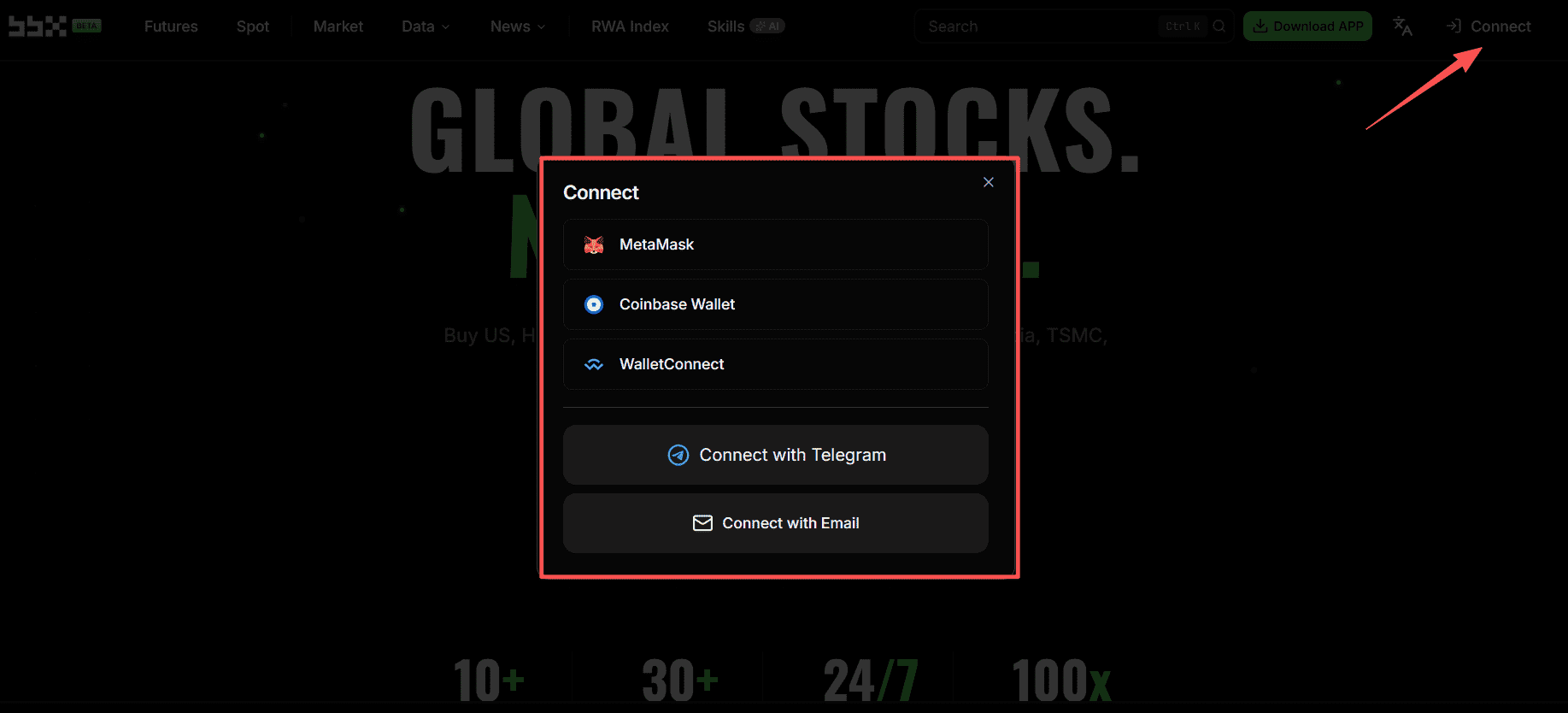
1. Visit the official website: bbx.com.
2. Click the "Connect" button in the upper right corner of the page.
3. You may choose to connect directly via a decentralized crypto wallet such as MetaMask, Coinbase Wallet, or Wallet Connect, or opt for a quick login via Telegram, email, etc.
4. Upon successful login, your exclusive **account address** will be displayed below your account name in the upper right corner. This address serves as your funding account credential on the platform.
#### Step 2: Deposit USDT/USDC
The platform operates on a segregated account management system for Funding and Perpetual Accounts. Deposit operations support the following two paths:
**Path 1: Deposit into Funding Account (Requires Manual Transfer)**
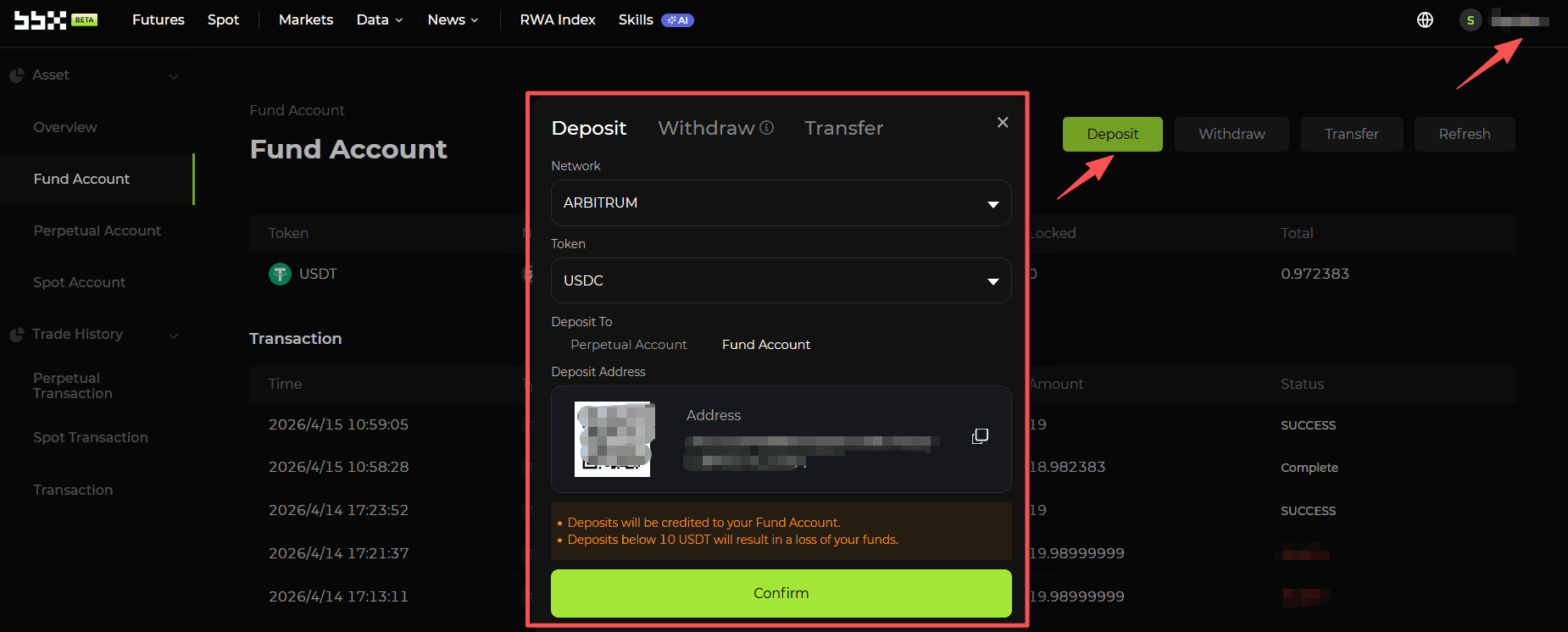
1. Click the "Personal Account" icon in the upper right corner to access your "Portfolio".
2. Select "Funding Account" and click "Deposit".
3. Choose the corresponding network (e.g., Arbitrum) and token (USDT / USDC). The deposit address displayed here is identical to your exclusive account address. *Note: After a successful deposit, the funds will remain in the Funding Account. To trade stocks, you must first transfer them to the "Perpetual Account".*
**Path 2: Direct Deposit into Perpetual Account (System Auto-Routing)**
1. In your "Portfolio", select "Perpetual Account" and click "Deposit".
2. Choose the corresponding network and token. Please note: **The Perpetual Account has an independent deposit address that differs from your default Funding Account address.** *Note: When depositing to this independent address, the funds will first reach your Funding Account on the underlying network, and then the system will automatically transfer them to your "Perpetual Account" for direct trading.*
**⚠️ Core Fund Security Warning:** Please strictly verify the deposit address. A single deposit amount must **absolutely not be less than 10 USDT**. Deposits below this amount will not be credited by the system and will result in permanent loss of funds. All on-chain deposit confirmations typically take only a dozen seconds, completely eliminating traditional fiat channel fees.
#### Step 3: Fund Transfer
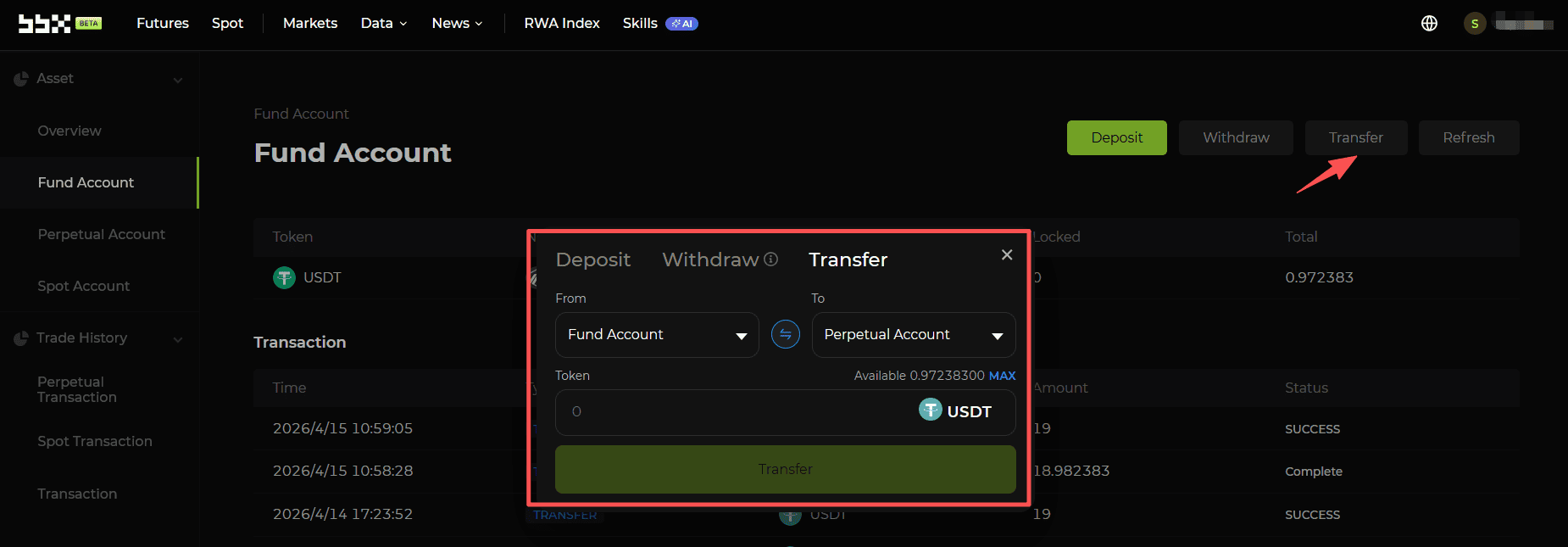
Before trading global stock perpetual contracts, make sure the assets required for trading are available in your “Contract Account.” If your assets are currently held in your “Funding Account,” click “Account” in the upper-right corner, select “Transfer,” and transfer the relevant assets from your Funding Account to your Contract Account.
BBX currently supports asset transfers between the following accounts:
```
Funding Account ↔ Contract Account
Funding Account ↔ Spot Account
Funding Account ↔ Stock Account
```
Transfers between these accounts are processed on-chain and may therefore involve:
* Blockchain network fees
* Minimum transfer amounts
* Transfer fees
* Blockchain confirmation and crediting times
Specific requirements may vary depending on the asset and network.
The actual minimum transfer amount, applicable fees, and estimated arrival time are subject to the information displayed in the transfer window and the actual data recorded on the relevant blockchain.
#### Step 4: Stock Selection and Order Placement
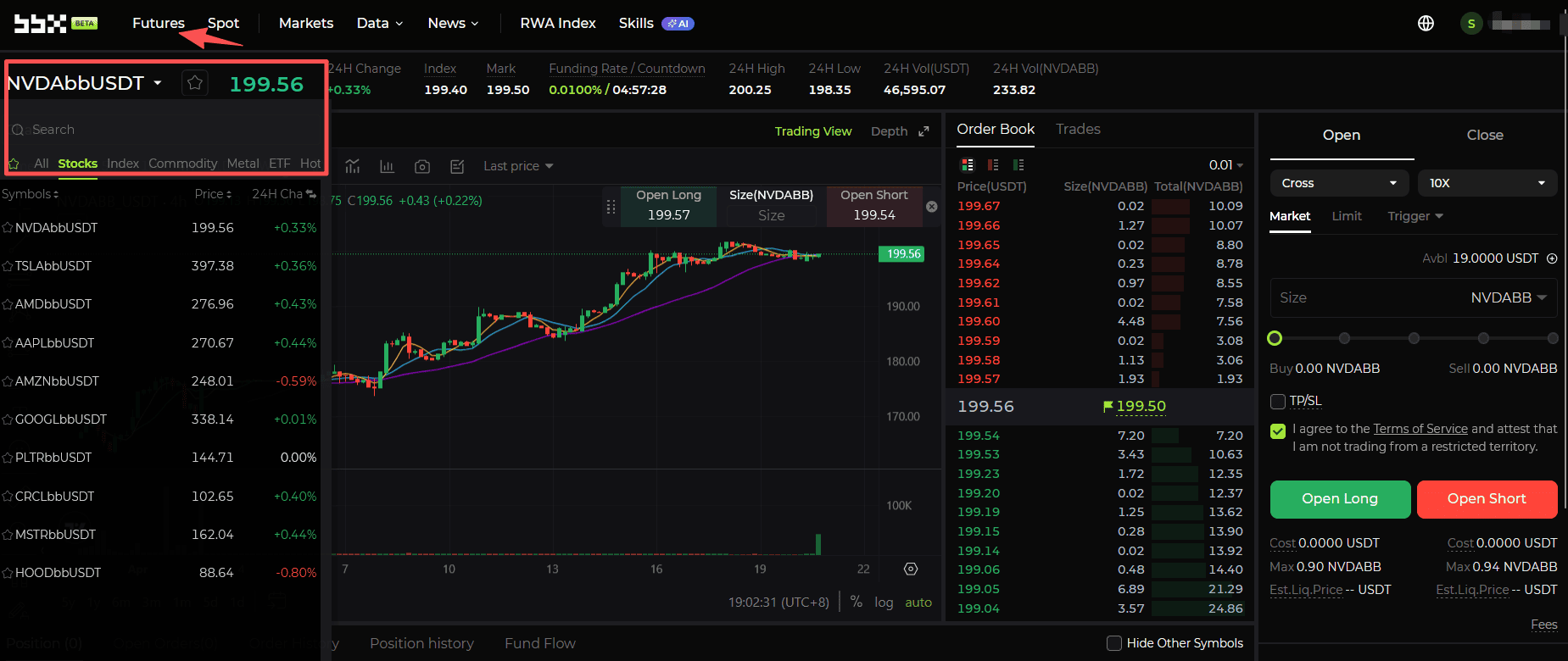
Once your funds are ready, you can access global financial markets directly through the trading interface. From the navigation panel on the left, you can switch between categories and select the market you want to trade.
BBX DEX currently supports USDT-based trading for multiple types of perpetual contracts, including U.S. stocks, Hong Kong stocks, Korean stocks, ETFs, global indices, commodities, cryptocurrencies, and other on-chain assets. Representative markets include:
* **U.S. stocks and U.S.-listed securities:** Apple (AAPL), NVIDIA (NVDA), Tesla (TSLA), Amazon (AMZN), Alphabet (GOOGL), AMD (AMD), Palantir (PLTR), MicroStrategy (MSTR), Robinhood (HOOD), Circle (CRCL), Taiwan Semiconductor Manufacturing Company (TSM), Intel (INTC), Nebius (NBIS), SanDisk (SNDK), Marvell (MRVL), Applied Optoelectronics (AAOI), Qualcomm (QCOM), SoFi (SOFI), Toyota Motor (TM), and PDD Holdings (PDD), among others.
* **Hong Kong stocks and related markets:** Tencent (TENCENT), Zhipu (ZHIPU), MiniMax (MINIMAX), and SHEIN (SHEIN), among others.
* **Korean stocks and related ETFs:** SK hynix (SKHYNIX), Samsung Electronics (SAMSUNG), and KODEX 200 (KODEX200), among others.
* **Major global indices:** S\&P 500 (SPX500) and Nasdaq-100 (NASDAQ100), among others.
* **Global market ETFs:** Nasdaq-100 ETF (QQQ), S\&P 500 ETF (SPY), 3x leveraged long Nasdaq-100 ETF (TQQQ), 3x inverse Nasdaq-100 ETF (SQQQ), South Korea ETF (EWY), Japan ETF (EWJ), Taiwan ETF (EWT), China Internet ETF (KWEB), leveraged semiconductor ETF (SOXL), DRAM (DRAM), long-term U.S. Treasury-related ETFs (TMF and TBT), GGL, and KSTR, among others.
* **Commodities and precious metals:** Crude oil (WTIOIL), gold (XAU), and silver (XAG), among others.
Visit the [BBX DEX trading page](https://dex.bbx.com/en/futures/trade/nvda_usdt) to view trading information for each contract. Supported markets, contract parameters, and availability are subject to the real-time information displayed on the trading page.
**Placing an order:** After selecting a market, such as NVDA, choose an order type in the trading panel on the right and enter the order price, if applicable, and trading quantity. After confirming the order details, click “Buy/Long” or “Sell/Short” to submit the order.
#### Step 5: Withdrawal
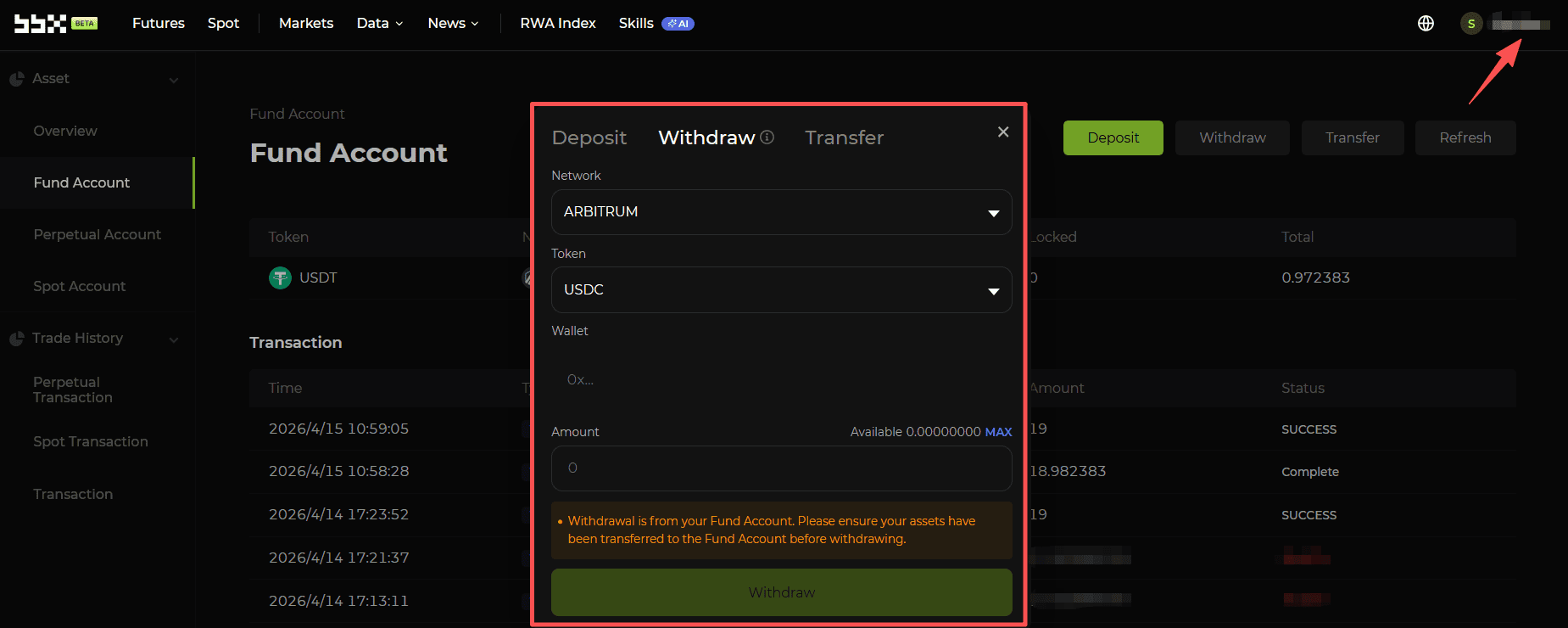
The standard withdrawal process is as efficient as depositing, but entails strict account restrictions: **withdrawal actions can only be initiated from the "Funding Account".**
1. Click the "Personal Account" icon in the upper right corner, enter your "Portfolio," and click "Withdraw".
2. Select the network and token, input your target withdrawal address and amount, and confirm to complete the withdrawal. *Note: If your funds are currently in the "Perpetual Account" (for example, principal and profits after recently closing a position), you must first use the "Transfer" function to move the required funds back to the "Funding Account" before successfully submitting a withdrawal request.*